August often brings a bit more breathing space. The inbox quietens down, a few clients are away, and there’s usually a natural pause before September picks up again. It’s a good time to sit down with your website and get a little more comfortable making small changes yourself. More specifically, this is a great opportunity to update your WordPress website and ensure it stays current.
I hear this a lot from clients. They have a lovely WordPress website, but they’re nervous to touch it. A typo sits there for months because updating it feels risky. A new product or service doesn’t get added because nobody’s quite sure where to click. It’s completely understandable. WordPress can feel like a maze if nobody’s shown you around it, which is why knowing how to update your WordPress website safely is empowering.
The good news is that plenty of small updates are genuinely safe to make yourself, once you know where to look and what to leave alone. Here’s a simple guide to get you started so that you can confidently update your WordPress website even if you’ve never done it before.
A quick note on themes and page builders
Not every WordPress website works in quite the same way. Some are built with the standard WordPress block editor, while others use a page builder such as Elementor, Divi or Beaver Builder, which adds its own way of editing pages on top of WordPress. The general principles in this guide still apply either way, take a backup first, make small changes, preview before publishing. The exact buttons and menus might look a little different depending on what your site is built with. If you’re ever not sure which one you’re working with, that’s a perfectly reasonable thing to ask whoever built your site, including me. Additionally, if you update your WordPress website using a different editor or builder, always double-check the preview before publishing.
Before you touch anything, take a backup
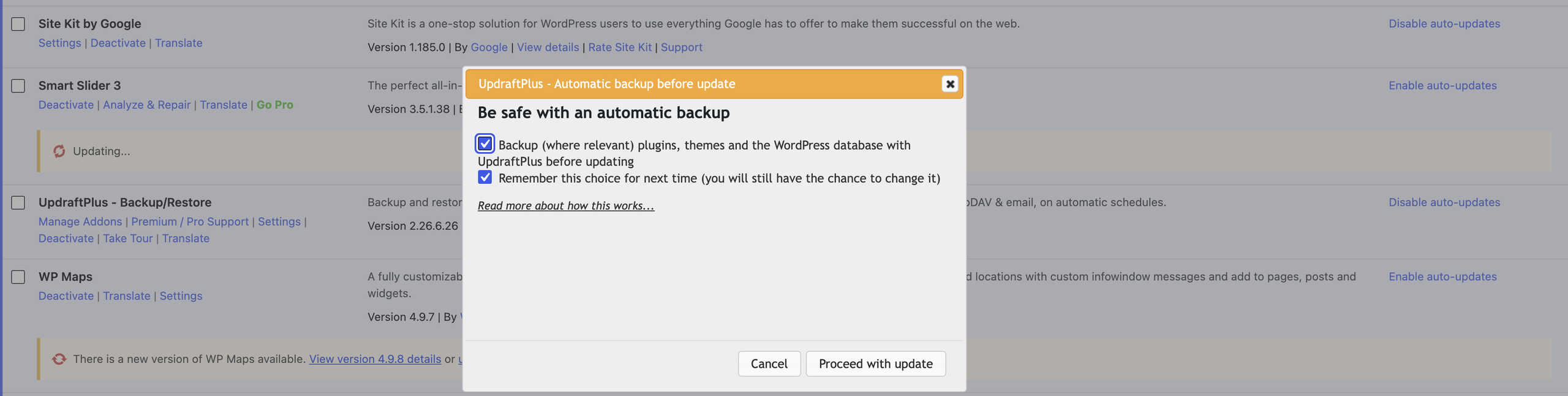
This is the one step worth never skipping. A backup means that whatever you do next, you can always undo it. Most hosting includes some form of backup, and there are plugins such as UpdraftPlus that make it easy to take one yourself in a couple of clicks. If you’re not sure whether your site is backed up regularly, that’s worth checking first, before anything else on this list.
Editing text and images
This is usually the safest place to start. In the WordPress editor, click directly into the page or post you want to change. You can edit text in place, and swap an image by clicking on it and choosing a new one from your media library. Before publishing, use the preview option to see exactly how it will look live. If you’re not quite ready to make it public yet, save it as a draft rather than publishing straight away.
Adding a new blog post
Head to Posts, then Add new. Give it a title, write your content using the block editor, and add a featured image so it looks good when shared. You can pop it into a category so it sits alongside similar posts. Preview it first, then hit publish when you’re happy.
Updating plugins and themes safely
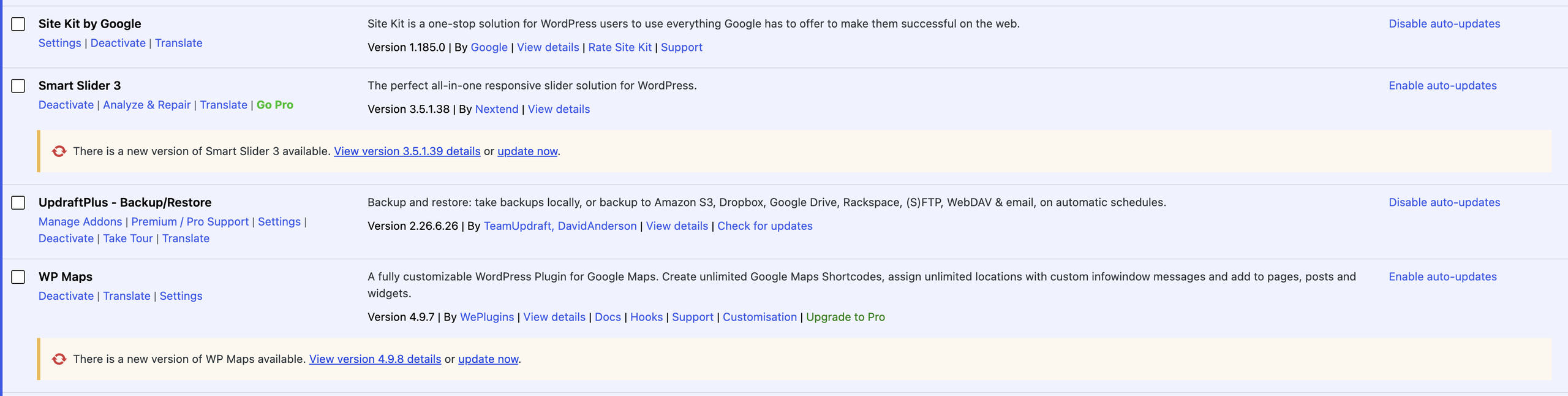
Plugin updates are usually there for good reason, often security fixes, so keeping on top of them matters. Once you’ve taken a backup, update one plugin at a time rather than everything at once, and take a quick look at your site afterwards to check nothing’s shifted or broken. It’s worth avoiding a big batch of updates right before something important, like a launch or a busy period, just in case something needs a bit of attention afterwards.
What to leave to someone else
Some areas are best left to a developer, and there’s no shame in that at all. These include:
Major WordPress core updates on a more complex or custom built site
Updating plugins that control something business critical, like bookings or payments
Getting these wrong can be time consuming and costly to put right, so if in doubt, it’s always worth asking first. To sum up, remember to update your WordPress website regularly but know your limits, and don’t hesitate to ask for help with anything beyond your comfort zone.
When it helps to have support in your corner
Even with all of this, plenty of business owners would rather not be the one troubleshooting a website at nine o’clock at night. That’s completely fair too. My support plans cover the regular updates, security checks and monitoring in the background, so nothing gets left to quietly go wrong, and I’m on hand for anything trickier. Some clients like knowing they could make small edits themselves if they wanted to, with me there as a safety net. Others would simply rather hand the whole thing over. Both are absolutely fine, it’s just about what feels right for you.
If you’d like a hand getting more confident with your own website, or would rather I took it off your plate entirely, I’m always happy to have a chat about what would suit you best.
If you’ve been looking at your website recently and wondering whether it’s time to start again, you’re certainly not alone. It’s a question I hear regularly from business owners. Sometimes…
First impressions matter more than you think When someone lands on your website, a lot happens in just a few seconds. Understanding what happens when someone visits a website can…
February is often about relationships. And when it comes to your business, your website is usually the very first interaction someone has with you. Understanding how to build trust on…